
AudioMap 2.0.0
What’s new in AudioMap 2
AudioMap 1 measured your system. AudioMap 2 takes you the rest of the way: it guides you from speakers in a room to an aligned, corrected system, and plays that correction on everything you listen to.
AudioMap 2 is a free upgrade for every AudioMap 1 owner, with a fresh 12 months of updates counted from the day AudioMap 2.0 is released. If your AudioMap 1 trial has ended, AudioMap 2 starts one fresh trial by itself the first time you open it. What each edition includes is on the pricing page.
Set up
Tell AudioMap about your sound system. It measures each speaker, works out where everything sits, and shows you the layout to confirm.
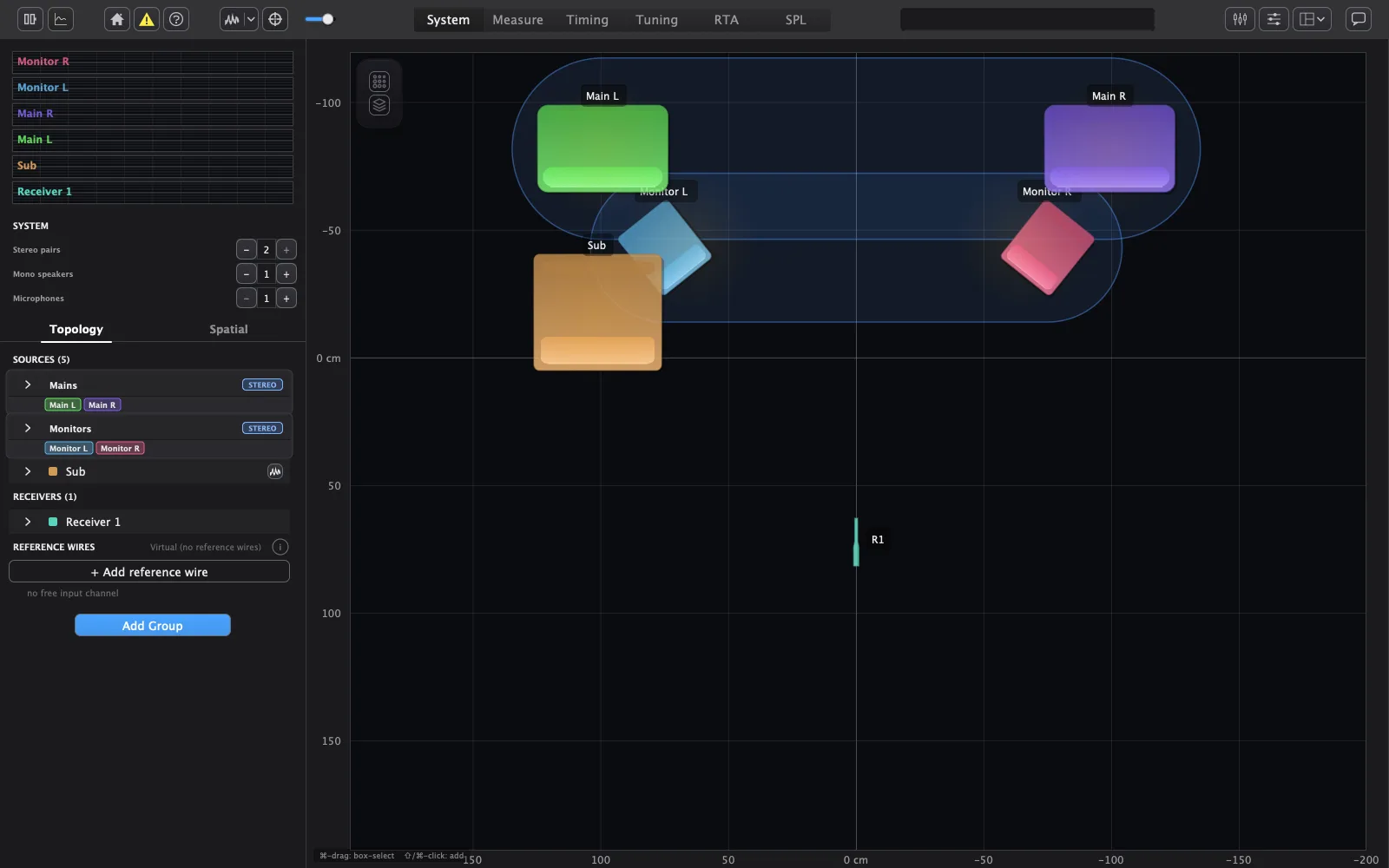
- Start from a preset close to what you have, anything from a home hi-fi to a festival PA, and adjust it to match. Save your own layouts to start the next job from them.
- You confirm the layout with a few tape-measured distances, and AudioMap uses them to refine it.
- No loopback cable is needed. If you prefer a hardware reference, cable an output back to an input and add it as a reference wire.
- AudioMap checks your wiring and your measurements as it goes, and tells you what to fix when something doesn’t add up.
→ How it works: Setup guide · System tab
Measure
Walk the mic around your coverage area. AudioMap captures each spot and shows you how the room responds.
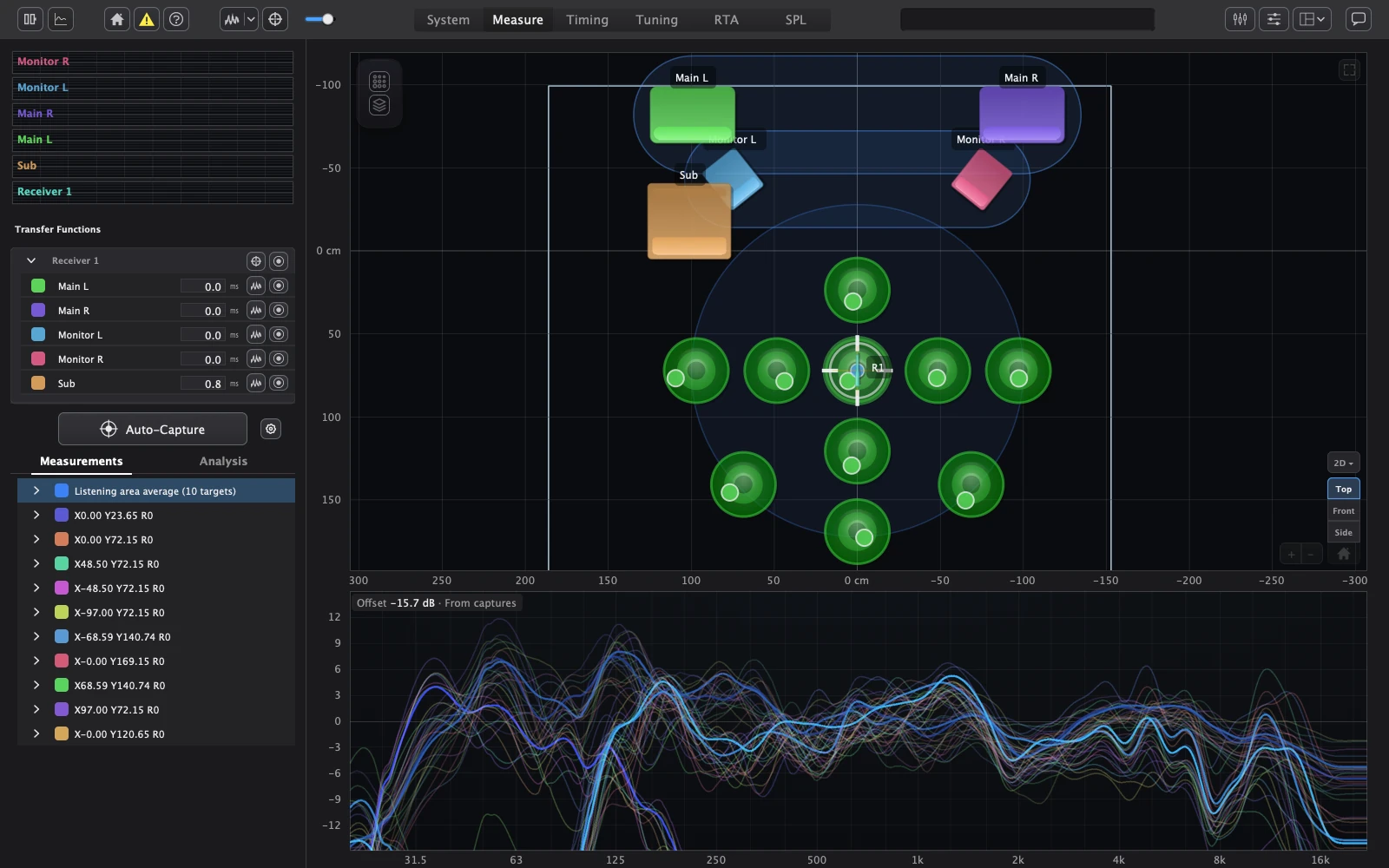
- Auto-capture guides you around the coverage area. Walk the mic to each target and hold still, and it captures; you can also capture or skip any target yourself.
- The heatmap shows how your speakers cover the room at any frequency, including reflections from the room surfaces AudioMap detects, and it is corrected toward what your microphones actually measured.
- Reverberation, clarity and the room modes that shape the low end come from your own captures.
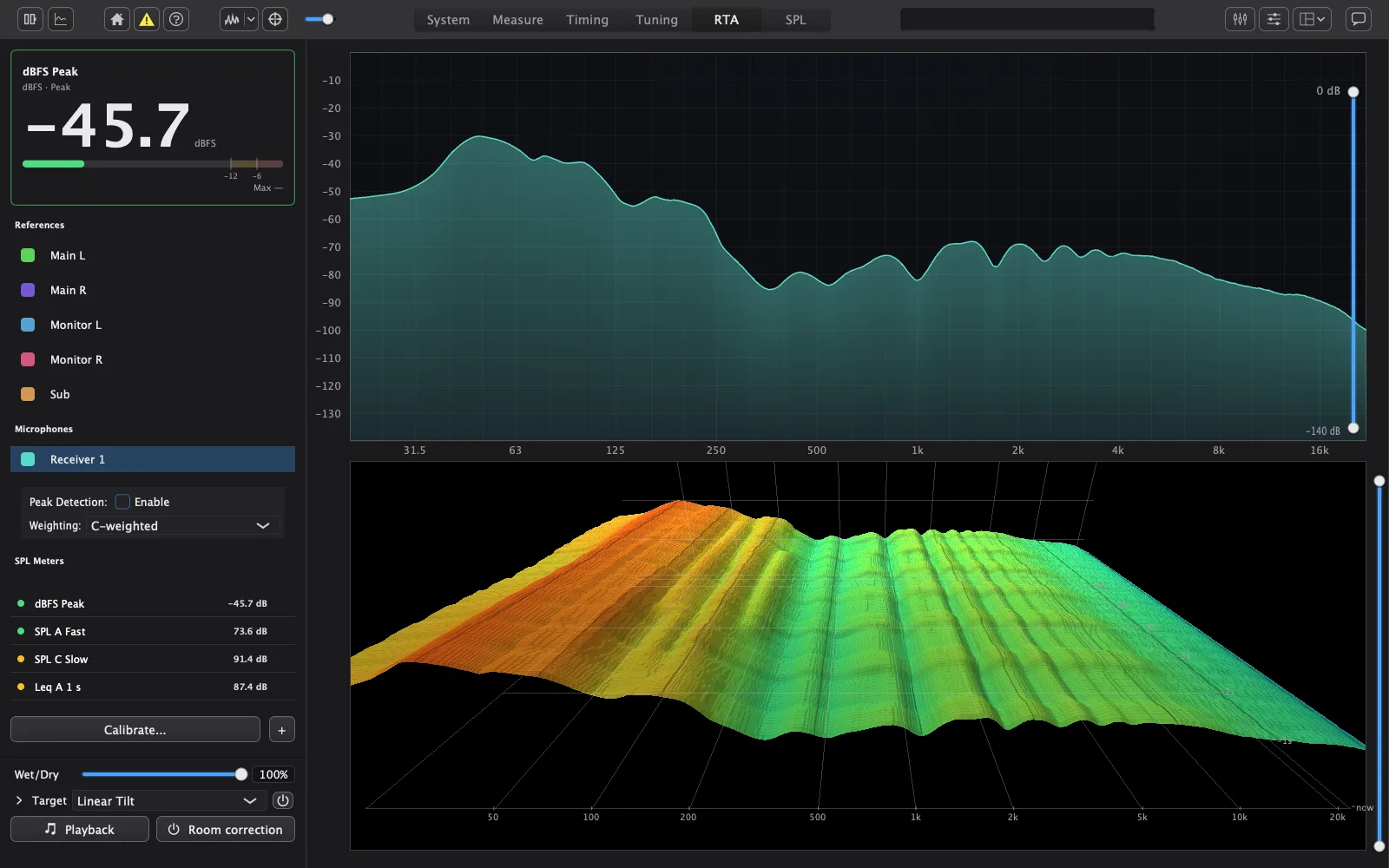
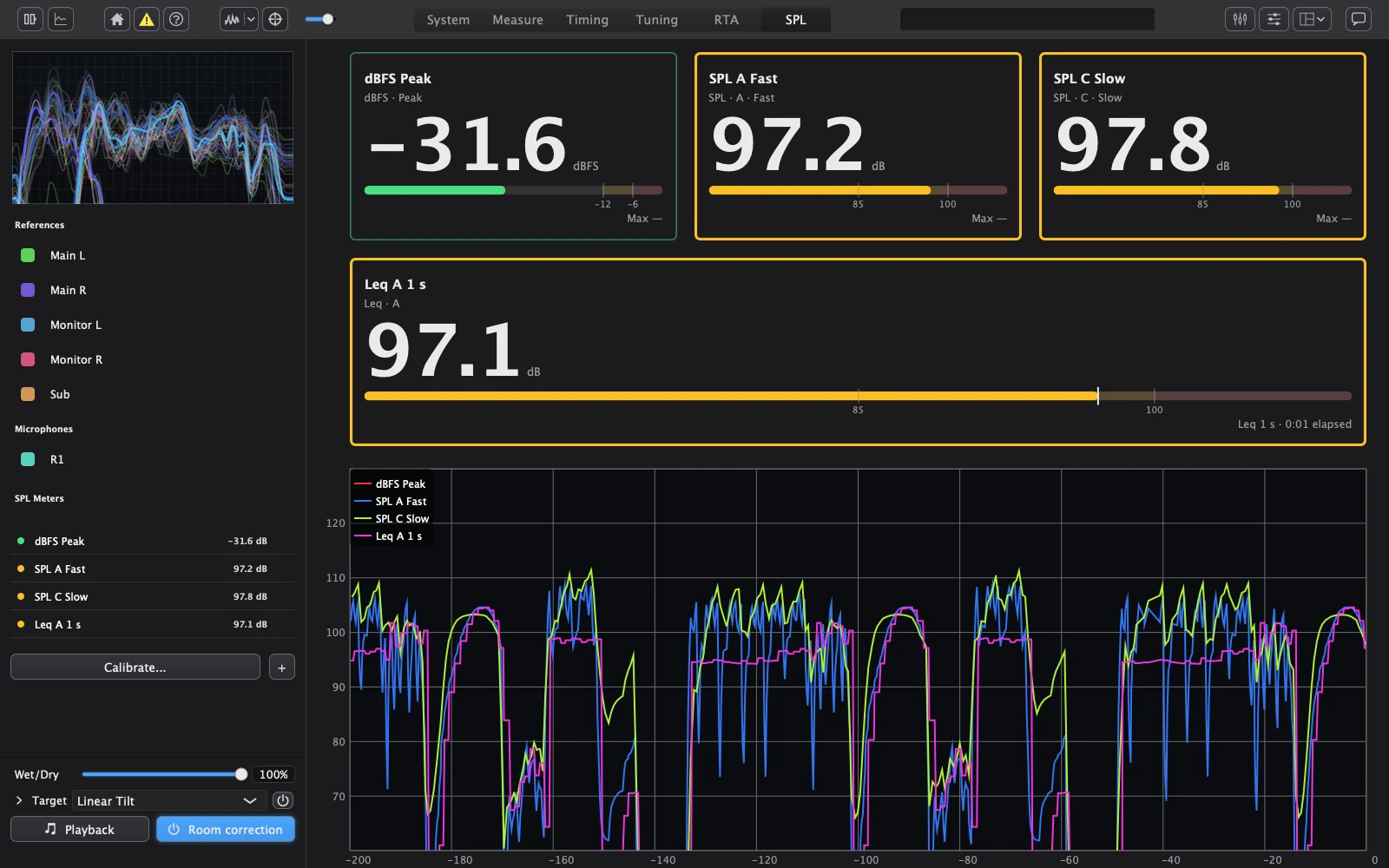
- The RTA shows the spectrum as a 3D waterfall, with a crest factor view. The SPL tab tracks your level against the exposure rule you work to and shows how much allowance is left. Absolute SPL needs a calibrated microphone.
→ How it works: Auto-capture
Align and correct
From your measurements, AudioMap sets each speaker’s delay and polarity, suggests the crossovers, and fits a correction to the positions you choose.
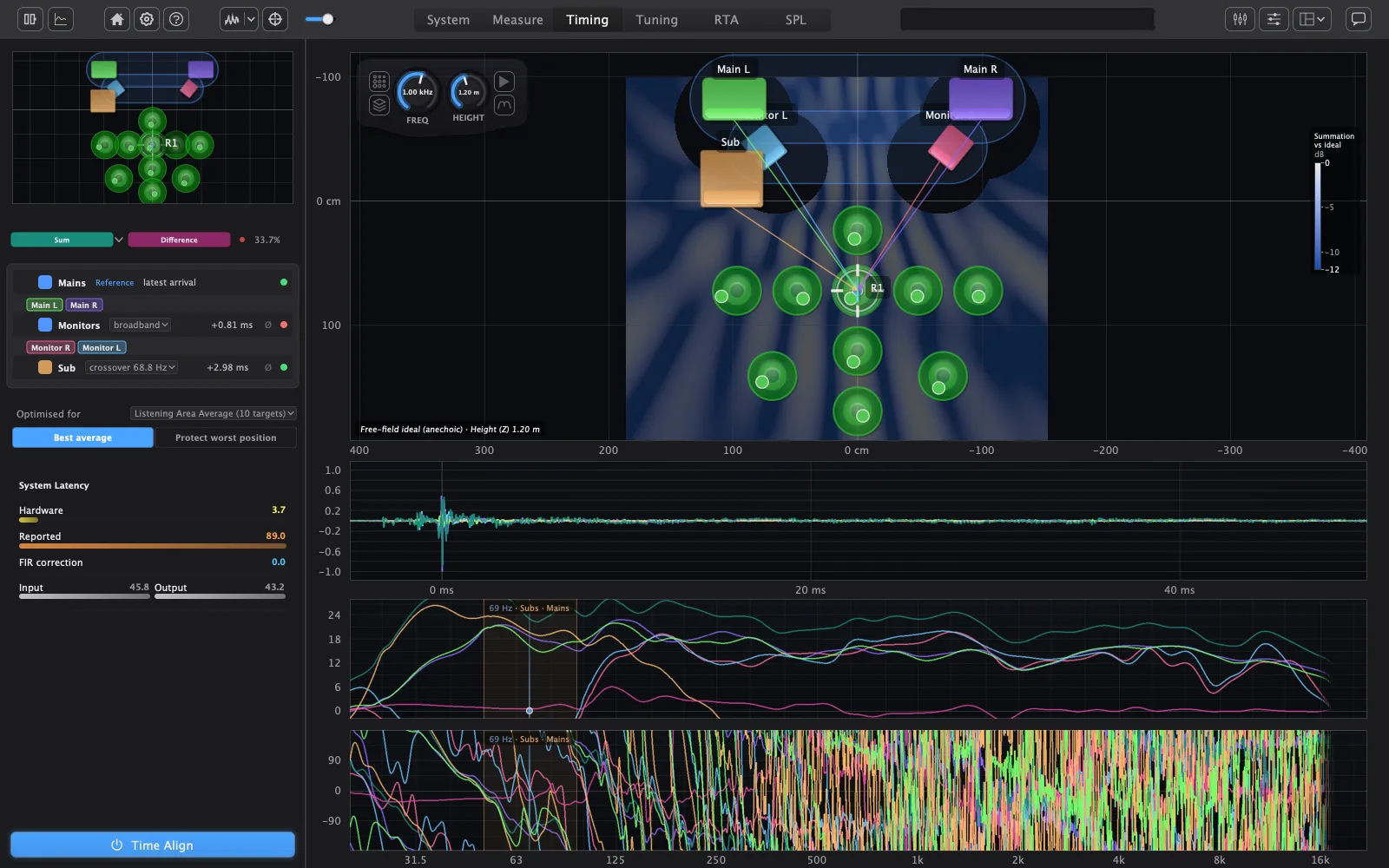
- The new Timing tab sets each speaker’s delay and polarity so their sound arrives together where you listen. With several positions measured, choose the best average or protect the worst seat. You can override any delay or polarity yourself.
- AudioMap suggests a crossover for each hand-off between subs and tops, based on where the two actually overlap, and draws the predicted sum before you commit.
- The correction is fitted for each speaker or as one correction for a whole group, over the positions you choose. Aim it at a simple tilt, separate bass and treble, or a Harman-style in-room curve.
Choose how the correction plays for the whole sound system, trading latency for phase accuracy:
| Mode | What it does | Added delay |
|---|---|---|
| Zero latency | For live work. | None |
| Minimum phase | The same tonal correction, built as one long filter. | None |
| Linear phase | Corrects the tone without adding phase shift, where latency doesn’t matter. | About 85 ms at 48 kHz |
| Mixed phase | Minimum phase in the low end, where pre-ringing is easiest to hear, linear phase above. | Same as Linear phase |
| Excess phase only | Corrects the tone, plus the part of the phase EQ can’t fix, where the measurement is reliable. | Same as Linear phase |
→ How it works: Timing · Tuning · Correction modes · Crossovers
Listen everywhere
Hear the result on everything your Mac plays or in your DAW, or hand it to the processor that runs your sound system.
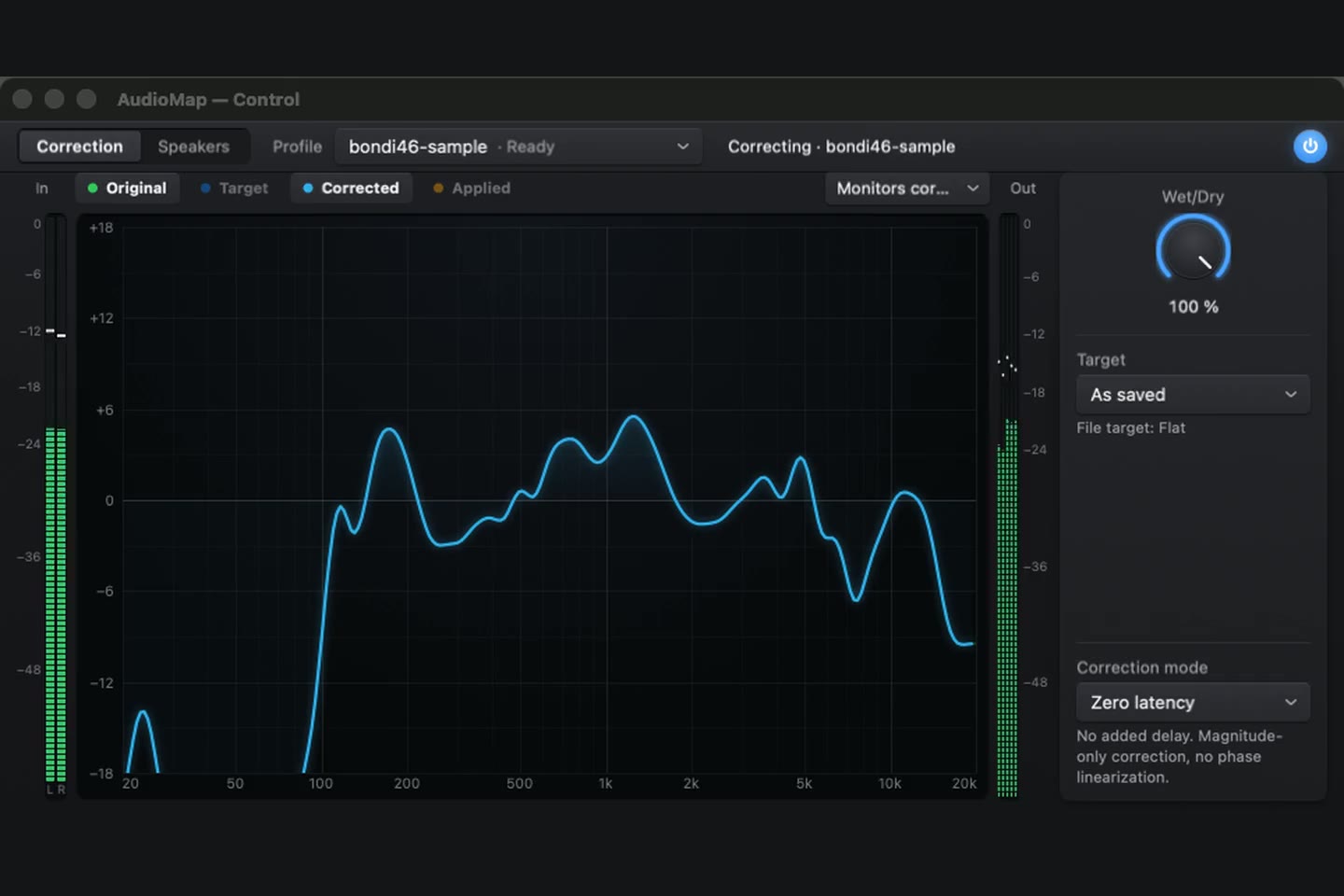
- Turn on Correction in AudioMap Control, in the menu bar, and everything your Mac plays runs through your correction on its way to the output you already use. It keeps correcting after you close AudioMap.
- AudioMap Plugin 2.0 (AU and VST®3) plays the same correction inside your DAW and reports its latency, so the DAW can compensate.
- Export the correction to the processor that runs your sound system, including miniDSP, d&b, Q-SYS, Powersoft and Linea, or as REW filter settings, a generic EQ list or an impulse response.
- A PDF report records everything that is playing, ready to hand to a client or keep with the job.
→ How it works: AudioMap Bridge and AudioMap Control · Plugin · Export & PDF report
Installing and upgrading
- One installer. AudioMap installs AudioMap Control, AudioMap Bridge and AudioMap Plugin alongside the app. On an older macOS the installer stops without changing anything, and your current version keeps working. An uninstaller removes all of them and keeps your projects.
- From AudioMap 1. Update from inside AudioMap 1.9, or download the installer from audiomap.io. AudioMap 1 projects open in 2.0, and the original is kept as a backup when you save.
- Usage data. You choose whether to share usage data, which helps us decide what to improve.